
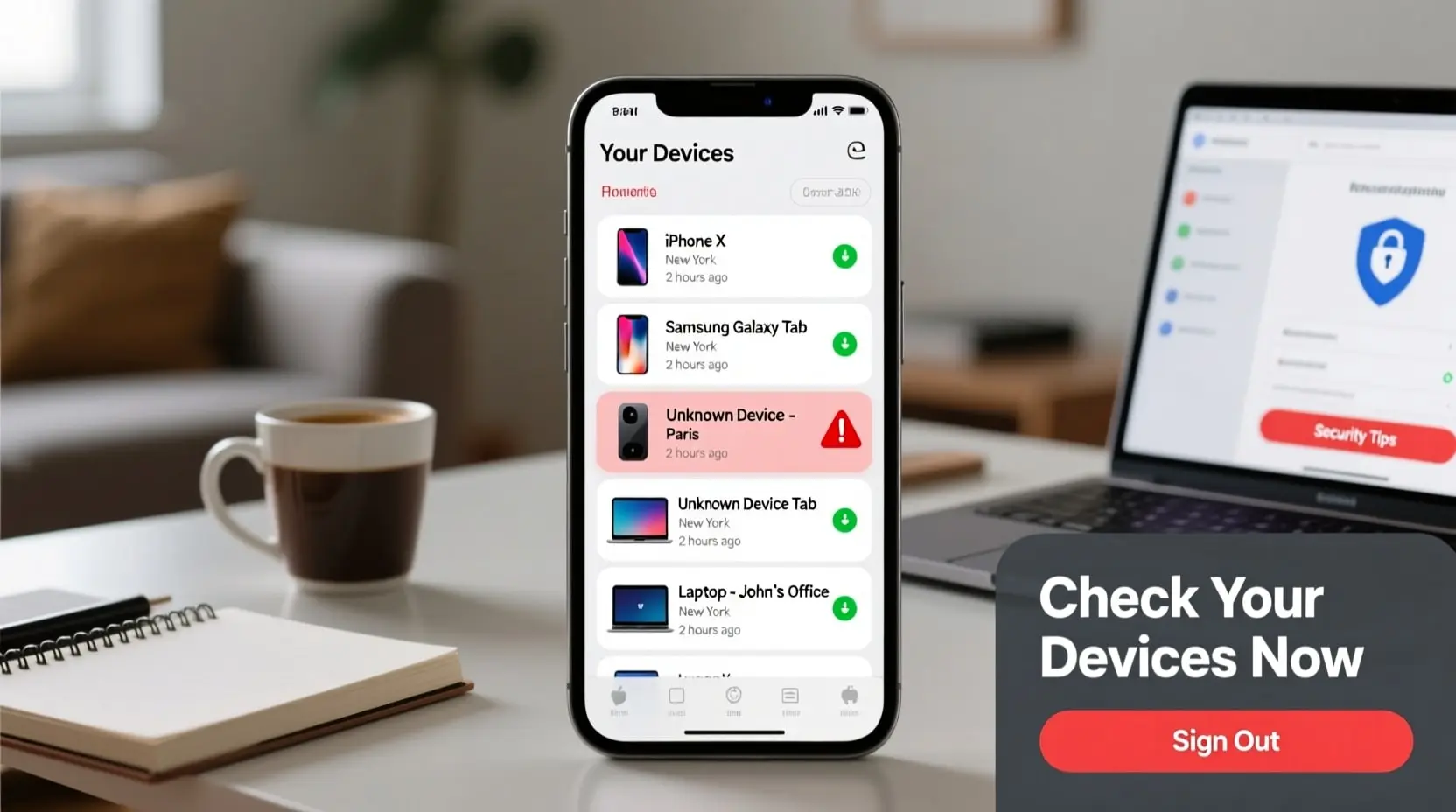
In today’s connected world, our smartphones hold everything from personal photos to banking details. That’s why security matters more than ever. If you’ve been wondering, “How do I know if my phone is linked to another device?” you’re not alone. Many people worry about unauthorized access to their phones. Someone could be reading your messages, tracking your location, or accessing your private data without you knowing. The good news is that checking for linked devices is pretty straightforward. This guide will walk you through the process step by step.
Why Your Phone Might Be Linked to Unknown Devices
There are several reasons your phone could be connected to devices you don’t recognize. Maybe you logged into your email on a friend’s computer and forgot to sign out. Perhaps you set up a new tablet months ago and don’t remember doing it. In some cases, someone with bad intentions might have accessed your accounts.
Shared family plans can also create confusion. If multiple people use the same Apple ID or Google account, their devices will show up as linked. This isn’t necessarily a problem, but it’s something you should be aware of.
Old devices you no longer use might still appear on your linked device list. That phone you traded in last year? It could still be connected to your accounts if you didn’t remove it properly before getting rid of it.
Signs That Someone Else Has Access to Your Phone
Before diving into the technical checks, watch for these warning signs. Your battery draining faster than usual could indicate background activity from spyware or remote access. Strange apps appearing on your phone that you didn’t download is another red flag.
Look out for unusual text messages or emails in your sent folder. If you see messages you didn’t write, someone else might have access. Higher than normal data usage can also point to unauthorized activity.
Your phone feeling warm even when you’re not using it suggests something is running in the background. Unexpected password reset emails are serious warning signs too. These could mean someone is trying to take over your accounts.
How Do I Know If My Phone Is Linked to Another Device on Android?
Checking linked devices on Android is simple. Start by opening your Settings app. Scroll down and tap on Google. From there, select “Manage your Google Account.”
Tap on the Security tab. Scroll down until you find “Your devices.” This section shows every device currently signed into your Google account. You’ll see phones, tablets, computers, and any other devices where you’ve logged in.
Review each device carefully. Look at the device names, locations, and last activity times. If something looks unfamiliar, tap on it for more details. You can sign out of any device you don’t recognize by selecting “Sign out” or “Don’t recognize this device.”
Also check your Google Play Store settings. Open the Play Store, tap your profile icon, then select Settings. Under General, you’ll find device preferences that show all connected devices.
Checking Linked Devices on iPhone
iPhone users should start with their Apple ID settings. Open Settings and tap on your name at the top of the screen. Scroll down to see all devices linked to your Apple ID.
Each device listed shows its name, model, and serial number. Tap on any device to see more information. You can remove devices you no longer use or don’t recognize by selecting “Remove from Account.”
Check your iCloud settings too. Go to Settings, tap your name, then select iCloud. Review which apps are syncing data across your devices. Turn off syncing for anything you don’t need shared.
Don’t forget about AirDrop and Bluetooth settings. Go to Settings, then General, then AirDrop. Set it to “Contacts Only” or “Receiving Off” to prevent strangers from connecting.
Third-Party Apps and Messaging Platforms
Your phone might be linked through apps rather than your main account. Check WhatsApp by opening the app, tapping the three-dots menu, and selecting “Linked Devices.” You’ll see any computers or tablets connected to your WhatsApp.
Facebook has similar settings. Open the app, go to Settings and Privacy, then Security and Login. You’ll find a list of devices where you’re currently logged in. Log out of anything suspicious.
Telegram, Signal, and other messaging apps have their own linked device settings. Check each app individually. Most have a Security or Devices section in their settings menu.
What to Do If You Find Unknown Devices
Finding an unfamiliar device doesn’t necessarily mean you’ve been hacked. But you should take action anyway. Start by removing the unknown device from your account. Change your password immediately after.
Enable two-factor authentication if you haven’t already. This adds an extra layer of protection by requiring a code in addition to your password. Most accounts support this feature now.
Consider running a security scan on your phone. Both Android and iPhone have built-in security features. You can also download reputable security apps to check for malware or spyware.
If you suspect serious unauthorized access, contact your phone carrier. They can help identify unusual activity on your account. You might also want to report the issue to local authorities if you believe someone is stalking or harassing you.
Keep Your Phone Secure Going Forward
Understanding “How do I know if my phone is linked to another device?” is just the first step. Make checking your linked devices a regular habit. Set a reminder to review your connected devices every month or two. Remove old devices you no longer use. Keep your passwords strong and unique for each account. Stay alert to warning signs of unauthorized access. Your personal information deserves protection, and these simple checks can help keep it safe.
Leave a Reply